
















Building your own PC might sound intimidating, but with proper knowledge, a step-by-step approach, and also a little patience, you can create a computer tailored to your needs and have fun doing it just like assembling a LEGO set.
1. Know What You Want Your PC For
Before buying parts, decide your main goal:
- Gaming – Focus on a strong graphics card (GPU).
- Work & Productivity – Prioritize a fast CPU and plenty of RAM.
- Content Creation – Go for more cores, better cooling, and large storage.
2. Gather the Core Parts
Here is the list of the basic components you’ll need:

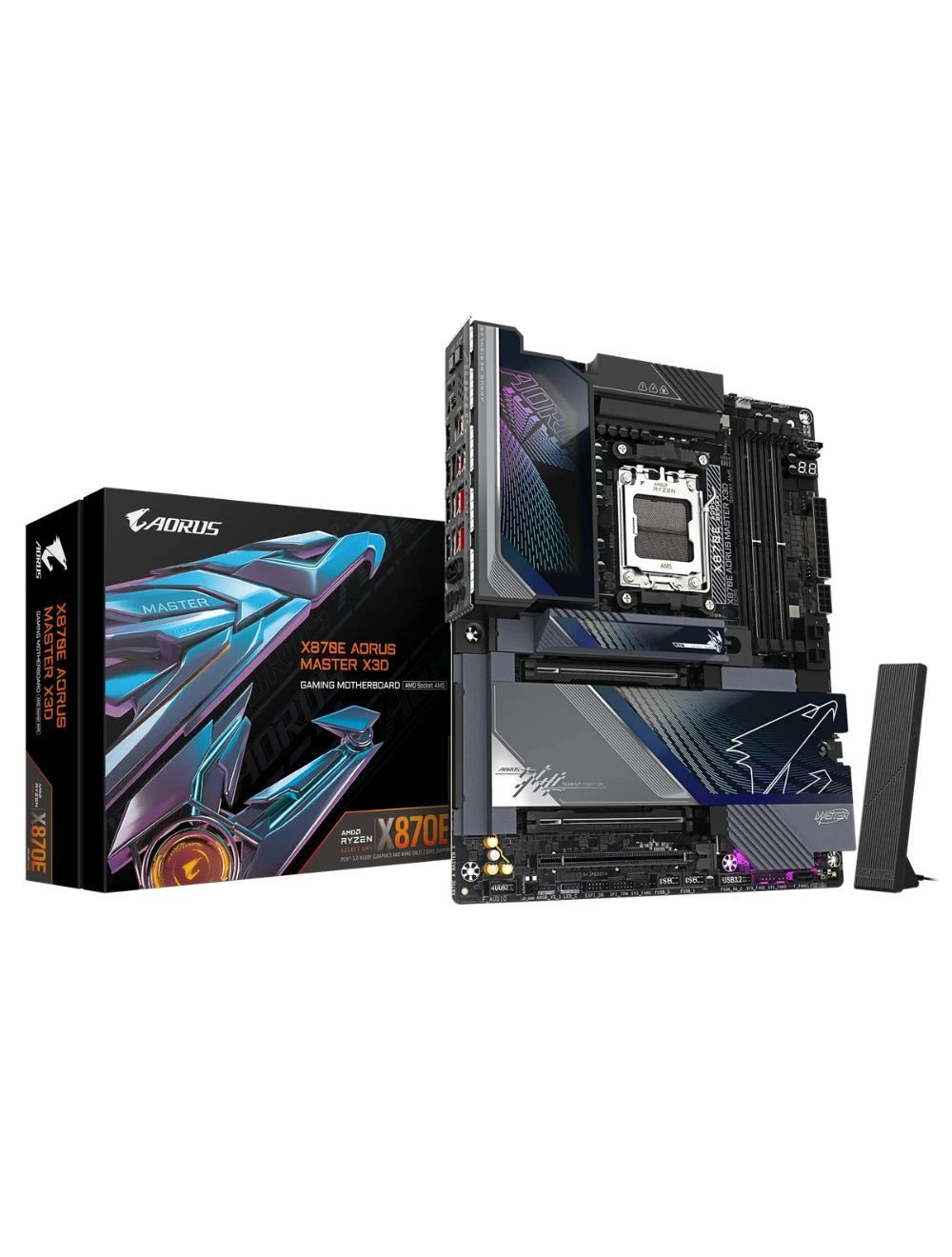
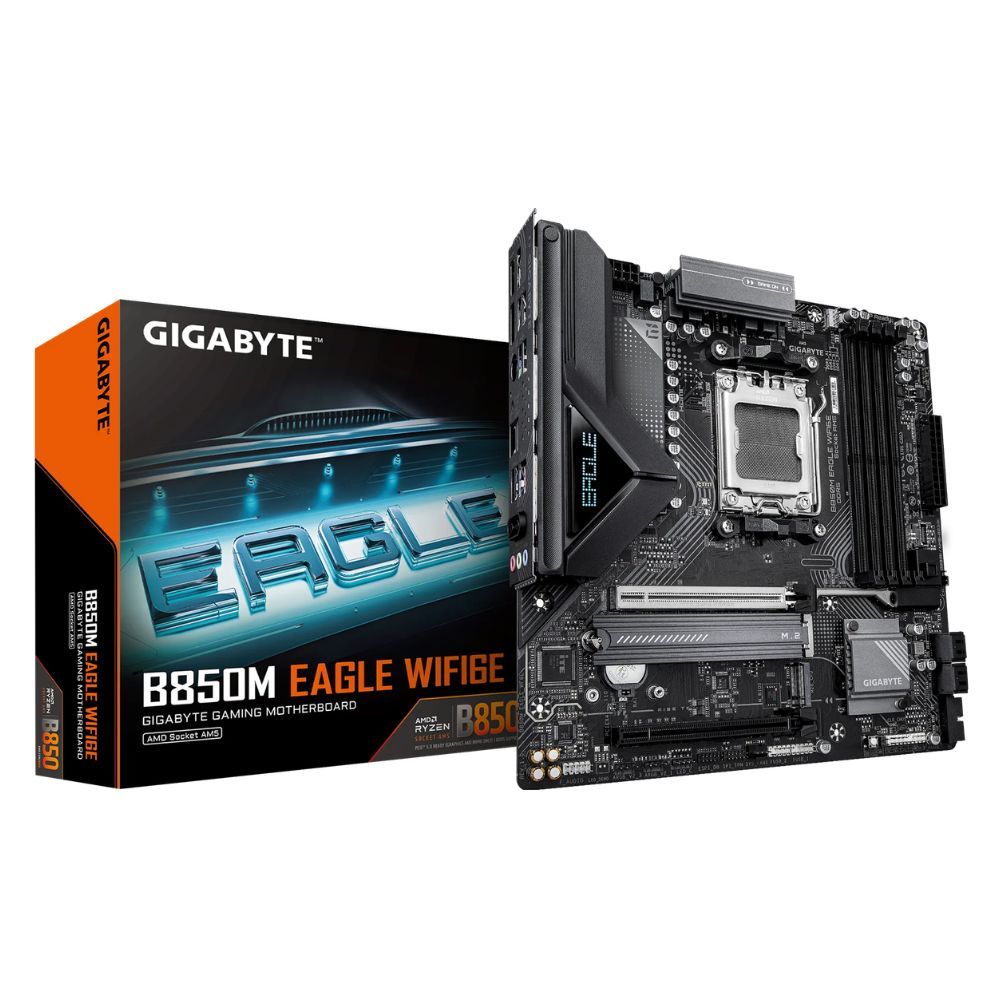
The motherboard is the main circuit board that connects all your computer parts together. It’s one of the first components you need to choose carefully, because it decides which CPU, memory, storage, and other hardware you can use. Not every part works with every motherboard, so compatibility is key.
When picking a motherboard, the first big decision is whether your system will be AMD-based or Intel-based. A motherboard can only support one or the other. It can’t handle both. So this choice is very important.
Key Things to Look for in a Motherboard
1.CPU Socket & Chipset Compatibility
The motherboard must support the correct CPU socket (e.g., LGA 1700 for up-to-date Intel CPUs or AM5 for newer AMD Ryzen chips), and its chipset must align with the CPU’s features (like overclocking or I/O capabilities).
2. Form Factor (Size & Case Fit)
Common motherboard sizes include ATX, micro‑ATX, Mini‑ITX, and E-ATX. The form factor determines how it fits in your PC case, how many slots it offers, and how many features it can hold.
- ATX: This is the form factor used in most desktop computers. It’s 12 inches long and 9.625 inches wide and offers room for expansion cards and peripherals.
- Micro-ATX: This is the same width as the ATX but two inches shorter. That means it fits smaller cases but doesn’t have as much space for expansion slots.
- Mini-ITX: These motherboards are only 6.75 inches wide and 6.75 inches long, so they fit in small cases but don’t have much space for expansion slots. You may get one expansion slot or none at all.
- E-ATX (Extended ATX): It’s the largest standard motherboard size available for consumer PCs. An E-ATX gaming PC uses a case and motherboard built to this form factor, giving you more space for components, better cooling options, and room for upgrades.
3. RAM Support (Type & Slots)
Ensure the motherboard supports the right type of memory (e.g., DDR4 or DDR5), the number of RAM slots (DIMM), and the maximum capacity you need. This impacts both performance and future scalability.
4. Expansion Slots & Storage Connectors
Look for enough PCIe slots (for graphics cards, sound cards, etc.) and storage connectors (like M.2 for SSDs or SATA ports for hard drives). Some boards support PCIe 4.0 or 5.0, which are faster and more future-forward.
It is also worth noting that a PCIe 5.0 GPU can be used in a PCIe 4.0 Motherboard, They’re backward compatible, meaning the card will fit and run, however with some performance trade-offs.
Will it affect performance?
- For Gaming: Almost no difference. Games today don’t need the super-high bandwidth of PCIe 5.0 yet, so performance will look nearly the same.
- For AI/ML or Scientific Computing: These workloads move a lot of data very quickly. Limiting the bandwidth can slow things down noticeably.
- For Data-Heavy Apps (CAD, rendering, simulations): If the program constantly sends large amounts of data between the CPU and GPU, the slower PCIe 4.0 speed can create a small bottleneck.
5. Connectivity: I/O Ports & Networking
Your motherboard should have the ports and connections you need like USB-A or C, Ethernet, Wi-Fi, HDMI, or DisplayPort. Check both rear I/O and internal headers (for front-panel USB, case LEDs, etc.).
6. Power Delivery & Build Quality (VRMs)
The motherboard’s power delivery system (often in the form of VRMs—Voltage Regulator Modules) must be strong and stable enough to support your CPU, especially if you plan to overclock. Cheaper boards can struggle under high load.

The Central Processing Unit (CPU) is like the brain of your computer. It tells the computer what to do by handling all the information and instructions, making sure your PC can run programs and finish tasks.
But here’s the thing: Don’t just grab the most expensive processor you can find. There really isn’t a single “best” Intel or AMD option.
Choosing the right CPU is all about balance. You’ll want to think about three key things:
- Price – How much are you willing to spend?
- Performance – What do you actually need your computer to do?
- Future-proofing – Will this processor still meet your needs a few years from now?
Core & Threads: Cores are like the CPU’s “brains” that handle tasks. More cores mean the computer can do more things at once. Threads are like “virtual cores” that let each core handle multiple tasks at the same time.
Imagine each core as a worker in an office. More workers = more jobs done. Threads are like giving each worker an extra hand, so they can manage two smaller tasks at once.
Clock Speed (GHz): Clock speed is how fast each core works. A higher speed means tasks get done more quickly, but it’s not the only thing that matters.
Think of it as typing speed. A worker who types faster (higher GHz) can finish jobs quicker, but if there’s only one worker, they can still be overwhelmed.
Clock Speed (GHz): Clock speed is how fast each core works. A higher speed means tasks get done more quickly, but it’s not the only thing that matters.
Think of it as typing speed. A worker who types faster (higher GHz) can finish jobs quicker, but if there’s only one worker, they can still be overwhelmed.
Cache: Cache is a small but super-fast memory built into the CPU. It stores important data close to the processor so it can be accessed instantly.
It’s like a worker’s desk. The bigger the desk, the more notes and papers (data) they can keep nearby without running to the filing cabinet (RAM).
Integrated Graphics (iGPU): Some CPUs have built-in graphics so you don’t need a separate graphics card. These are good for basic tasks like browsing, watching videos, or light gaming.
It’s like a worker who can also design simple posters. They can handle basic artwork, but for big creative projects, you’ll need a professional artist (dedicated GPU).
Compatibility with Your Motherboard
Your CPU and motherboard must be compatible in both socket and chipset. The socket ensures the CPU physically fits, while the chipset unlocks its features like RAM speeds, PCIe lanes, and connectivity. If they don’t match, the PC won’t boot, and forcing parts together can bend pins, making them unusable and voiding the warranty. To avoid wasted money and heartbreak, always check the motherboard’s CPU support list or use compatibility tools before buying.
Think of the CPU and motherboard like a key and a lock. The key (CPU) has to be the right shape to fit into the lock (socket), and the lock has to be designed to work with that key’s features.
Different CPUs only fit into specific sockets. For example, Intel uses sockets like LGA 1200, LGA 1700, and the newer LGA 1851 for 15th generation processors, while AMD uses AM4 and AM5.
To know which CPUs will work with your system, check which socket type your motherboard supports.
Once you know the socket type, the next step is to look at the CPU’s generation and series. Both Intel and AMD regularly release new generations of processors with improvements in speed, efficiency, and features. Not all motherboards support every generation, so make sure your choice matches what your motherboard can handle.

- Purpose and Usage
The first step in choosing a GPU is to figure out what you’ll mainly use your computer for. Different activities demand different levels of graphics power:
- Casual use and office work:
For everyday tasks like browsing the web, editing documents, or streaming videos, you don’t need a powerful graphics card. Integrated graphics (built into many CPUs) or basic entry-level GPUs are more than enough. They’re also cheaper and use less power. - Gaming:
Requirements depend on the games you play and the settings you want. Casual or older games can run fine on mid-range GPUs, but modern AAA titles usually need powerful discrete GPUs to deliver smooth performance with high detail. - Content creation:
Tasks like video editing, 3D rendering, and graphic design benefit from strong GPUs with more VRAM, since they handle large amounts of graphical data. - Professional use:
Fields such as scientific visualization, AI, or machine learning often require specialized GPUs built for accuracy and specific workloads.
- Performance Requirements
- Frame Rates (FPS):
Frame rate measures how many images (frames) your GPU can show each second. The higher the FPS, the smoother the motion looks. For most gamers, 60 FPS is smooth enough, but competitive gamers often aim for 144 FPS or more for faster reactions. - Resolution:
Resolution is the sharpness and detail of the image, measured in pixels (like 1080p, 1440p, or 4K). Higher resolutions show clearer images but also demand more from the GPU to keep frame rates high. - Ray Tracing:
Ray tracing is an advanced graphics feature that simulates how light behaves in real life for more realistic reflections, shadows, and lighting. However, it requires a lot of GPU power and can reduce frame rates if the card isn’t strong enough.
- VRAM (Video RAM)
VRAM is the special memory built into your graphics card. It stores the images, textures, and data the GPU needs right away. The more VRAM you have, the better your system can handle high resolutions, detailed textures, and heavy tasks like gaming at 4K or video editing.
As a general guide:
- 4 GB – No longer sufficient for modern gaming or demanding applications.
- 6 – 8 GB – Bare minimum for 1080p, but increasingly inadequate especially with Ultra settings or ray tracing.
- 10 – 12 GB – Usable for 1440p, but may require reduced settings or rely on AI upscaling.
- 16 GB – The new standard for 4K gaming with high-quality textures and advanced effects.
- 18 – 24 GB+ – Ideal for future‑proofing, creative workloads, and especially VRAM‑heavy games.
GPU Performance Comparison estimates by Resolution
- 1080p – Entry-level and mid-range cards from the latest generations are built for smooth 1080p gaming. Even budget options like the RTX 5050 (but with some settings adjustments) or the RX 9060 and above can easily handle modern titles at this resolution.
- 1440p – This is the sweet spot for upper-mid-range to high-end cards. RTX 5060 Ti (good with some settings reduced) / RTX 5070 / 5070 Ti are strong performers.
- 4k – Higher-end models like RTX 5080, RTX 5090, RX 9070 XT are the go-to for smooth 4K gaming.
- 8k – The RTX 5090 can run games at 8K, especially with the assistance of technologies like DLSS 4 and Multi-Frame Generation (MFG), which enhance performance and frame rates.
- Power Consumption & System Requirements
GPUs are among the most power-hungry parts of a computer, so it’s important to make sure the rest of your system can support them:
- Power Supply Unit (PSU): Your PSU must provide enough wattage for the GPU. If the GPU requires more power than your PSU can deliver, your system won’t run properly.
- Physical Size: High-end GPUs can be quite large, so check that it actually fits inside your PC case.
- Cooling: Powerful GPUs produce a lot of heat, so your case needs good airflow and possibly extra fans or liquid cooling.
- Budget
GPUs range from affordable entry-level options to extremely expensive high-end models. While it’s tempting to go straight for the most powerful card, it’s usually smarter to balance your needs and budget. For most people, mid-range GPUs offer the best value because they’re strong enough for gaming and content creation without spending too much.
The GPU market is led by three main companies:
NVIDIA: Best known for their GeForce series, NVIDIA dominates gaming and professional markets. They’re especially strong in ray tracing and offer DLSS (Deep Learning Super Sampling), which uses AI to boost performance without losing visual quality.
AMD: AMD’s Radeon series delivers excellent performance at competitive prices. Their FidelityFX Super Resolution (FSR) competes with NVIDIA’s DLSS by improving graphics while keeping performance smooth.
Intel: A newer player in the dedicated GPU space, Intel’s Arc series focuses on affordable, mid-range cards. While still gaining ground, they’re a solid option for casual gamers and everyday use.

RAM (Random Access Memory) is a vital part of any gaming PC. Having enough RAM makes your system more responsive and can even improve frame rates compared to systems with less memory.
How Does RAM Work?
RAM is your computer’s short-term memory. It stores the temporary data your system needs right now to keep programs and games running smoothly. Unlike a hard drive or SSD, which saves data permanently, RAM gets wiped clean every time you restart your PC.
What RAM Is Compatible with Your Motherboard?
Before deciding on how much RAM you want or how fast it should be, you need to make sure the RAM you choose is compatible with your motherboard and CPU. The wrong type won’t fit or worse, it won’t work at all.
Module Type
RAM comes in sticks (called modules) that snap into the slots on your motherboard. Each motherboard supports only specific types of RAM.
Also take note that DDR5 RAM is physically incompatible with DDR4 motherboards and vice versa, due to different notch locations on the memory modules and a different pin layout. Even though both DDR4 and DDR5 U-DIMM modules have the same number of pins (288), attempting to force the wrong type of RAM into a slot can damage the RAM module or the motherboard’s DIMM slot.
DDR4, DDR5:
- DDR4 – The most common standard in most PCs today.
- DDR5 – The newest generation, offering faster speeds, higher capacities, and better efficiency, but only supported by the latest CPUs and motherboards (like Intel 12th Gen+ and AMD Ryzen 7000 series).
SDRAM & DDR Technology
All modern RAM is based on SDRAM (Synchronous DRAM), which syncs with the CPU’s speed. Over time, DDR (Double Data Rate) versions have evolved: DDR3 → DDR4 → DDR5.
Form Factor
- DIMM: Larger sticks for desktops.
- SO-DIMM: Smaller sticks for laptops, mini PCs, and compact desktops.
How to Check Compatibility
- Check your motherboard manual or manufacturer’s site.
- Run a system profiler tool (like CPU-Z).
- Use an online memory advisor tool (e.g., Crucial’s Memory Advisor).

Just like your choice of CPU or GPU, your storage drive can have a big impact on your gaming experience. When deciding between an HDD and an SSD, it’s all about balancing speed, capacity, and budget.
HDD (Hard Disk Drive)
Traditional storage with spinning disks. Offers large storage at a lower price. It is best for storing lots of files like movies, photos, or a massive game library when speed isn’t the top priority.
SSD (Solid-State Drive)
Modern storage with no moving parts. Much faster than HDDs, giving you quick boot-ups, shorter loading screens, and smoother overall performance. It is best for Operating systems, favorite games, and applications where speed matters most.
Understanding Storage Performance
When comparing storage drives, the most common benchmarks are read/write speeds.
Sequential Read/Write
Measures how fast the drive can move large files stored in order, like copying a big video file. Speeds are measured in MB/s (megabytes per second).
Random Read/Write
Measures how fast the drive can handle lots of small files scattered around the storage. This is more like real-world usage since games and apps constantly read/write small pieces of data. Speeds are measured in IOPS (Input/Output Operations Per Second).
Synthetic Benchmarks
These are lab-style tests manufacturers use to market their drives. While useful, they don’t always reflect everyday performance.
What’s the Difference Between SSD Form Factors?
SSD form factors decide how the drive connects to your motherboard and how fast it can transfer data.
2.5-inch SSD: Looks like a laptop hard drive. Most use the SATA III protocol, which requires a data cable and a power cable. Much faster than an HDD, but slower compared to NVMe SSDs.
M.2 SSD: Small, thin, stick-shaped drives (often compared to sticks of gum). They connect directly into the motherboard’s M.2 slot, no cables required. Most modern M.2 drives use NVMe for blazing-fast speeds, but some older models still use SATA.
M.2 slots can be tricky to find. They may be hidden under thermal shields or on the back of smaller motherboards. Check your manual if you’re unsure.
AIC (Add-In Card) SSD: Plugs into a PCIe slot on your motherboard (like a graphics card). Uses PCIe lanes for high-speed performance. Good alternative if your motherboard doesn’t have a free M.2 slot; some AICs even act as adapters for M.2 drives.
Other Form Factors: Some specialized SSDs, like U.2 NVMe, are mainly found in servers or enterprise environments, not typical gaming PCs.
Why Use an HDD?
Even though HDDs are slower and less durable than SSDs, they still serve an important role: storage capacity. HDDs are much cheaper per gigabyte, making them perfect as a secondary drive for storing terabytes of extra files like movies, backups, or games you don’t play often while keeping your SSD for speed.

The Power Supply Unit (PSU) might not be the flashiest part of your computer, but it’s one of the most important. Its job is to provide stable power to every component in your system. Using the wrong PSU or a cheap, low-quality one can cause instability, crashes, or even damage to your PC.
That’s why choosing the right PSU matters just as much as picking your CPU or GPU.
Even though most PSUs come with the cables you’ll need, it helps to understand what they do:
- 24-Pin Motherboard Connector: Powers the motherboard and its core features like the chipset and PCIe slots.
- 4/8-Pin CPU Connector: Provides extra power directly to the CPU, since modern processors need more than the 24-pin can deliver. Usually plugs in near the top-left corner of the motherboard.
- 6/8-Pin PCIe (GPU) Connectors: Supplies extra power to graphics cards. Some GPUs need just one connector, while high-end models may require multiple (like 6+8 or even 8+8+8).
- SATA Power Connector: Powers storage devices (SSDs, HDDs) and some extras like RGB hubs or fan controllers. Often comes with multiple connections on a single cable.
- 4-Pin Molex Connector (Legacy): An older connector type, rarely used today, but sometimes needed for things like water cooling pumps or old accessories.
How Many Watts Do You Need?
One of the most common PSU questions is: “How many watts is enough?” The answer depends on your system, since more powerful PCs need more energy.
- Simple builds (one GPU, basic cooling, mid-range CPU) need less power.
- Complex builds (custom liquid cooling, dual GPUs, high-end motherboards) require more.
Because every PC is different, the best way to calculate your needs is to:
- Use a PSU wattage calculator, or
- Add up the power draw of your components (CPU, GPU, etc.) and include some extra overhead.
General Rule of Thumb
If your system uses about 500W, it’s smart to choose a 600W or 650W PSU. This gives you headroom for:
- Safety margin under heavy load
- Future upgrades (like adding a better GPU later)
Important: A 750W PSU doesn’t always pull 750W. It only supplies what your system needs. If your PC draws 500W, the PSU will deliver 500W, even if it’s rated for more.
When picking a PSU, wattage isn’t the only thing that matters—efficiency is just as important. An inefficient PSU wastes electricity as heat, which not only drives up power bills but can also shorten the lifespan of your components.
To help buyers, PSUs are certified under the 80 Plus program. This rating means a power supply is at least 80% efficient—so no more than 20% of the electricity it draws is lost as heat.
The ratings climb higher with precious metals:
- 80 Plus (Standard)
- 80 Plus Bronze
- 80 Plus Silver
- 80 Plus Gold
- 80 Plus Platinum
- 80 Plus Titanium (highest efficiency)
The higher the rating, the less power wasted and the cooler the PSU runs. But remember, higher efficiency usually comes with a higher price tag.

Keeping your CPU cool isn’t just about avoiding overheating but it also helps your processor run at its best, extends the life of your PC parts, and can even match your build style.
That’s why picking the right cooler matters. May it be air cooling, the balance of an all-in-one (AIO) liquid cooler, or the customization of a full water-cooling loop, the right choice depends on your system’s needs and your personal preferences.
- AIR COOLERS
Air coolers are the go-to choice for most PC builders because they’re simple to use, easy to install, and require almost no maintenance.
- AIO Liquid Cooling
All-in-one (AIO) liquid coolers are a step up from air cooling, offering better thermal performance for powerful CPUs while keeping your build looking sleek. They come pre-assembled, so you don’t need to worry about building a custom water loop.
- Custom Water Cooling
Custom water cooling is the ultimate cooling solution for PC enthusiasts. It offers unmatched performance and lets you design a system that looks as good as it runs. But it’s also the most complex and expensive option, best suited for advanced builders.
Ultimately, the selection hinges on finding a cooler that aligns with your specific requirements, including the physical constraints of your PC case, the thermal demands of your CPU, and your personal preferences for noise levels and visual design.

PC cases come in different sizes, and the one you pick will affect not only how your build looks, but also how easy it is to work with, how much space you have for components, and how well it stays cool.
- MID-TOWER
Mid-tower cases are the sweet spot for most users. They fit standard ATX motherboards (the most common size), while also being compatible with smaller ones. This works because this chassis offers plenty of space for your parts, good airflow, and easy cable management without being too bulky. - FULL-TOWER
Full-Tower chassis are much larger than mid-towers. These cases can fit extended ATX motherboards and leave lots of room for extras like multiple graphics cards or custom water cooling loops. Some can even house two systems in one case.
- SMALL FORM FACTOR (SFF)
The most compact cases, some as small as a game console. Perfect for limited desk or living room space. Great for portability and minimalist setups, but harder to build in and can run hotter because of limited airflow.

By now, you’ve walked through the essential components that make up a PC—motherboard, CPU, GPU, RAM, storage, PSU, cooling, and case. Each one has its own role, and when they come together properly, you’ll have a powerful machine built exactly for your needs.
So… now what?
- Set Your Budget & Priorities
Decide what’s most important for your build—gaming performance, content creation power, or everyday productivity. This will guide your choices without overspending on parts you don’t actually need. - Double-Check Compatibility
Use online tools like PCPartPicker or check official support lists to make sure your CPU, motherboard, and RAM all play nicely together. Think of it like making sure every LEGO piece actually snaps into place. - Plan the Build Process
- Research a few build guides or watch tutorial videos.
- Prepare the right tools (mainly a screwdriver, patience, and a static-free workspace).
- Keep manuals handy—you’ll use them more than you think.
- Start Small, Upgrade Later
Don’t feel pressured to buy the absolute best right away. Build a solid foundation, and leave room for upgrades like adding more RAM, swapping in a stronger GPU, or adding faster storage later on. - Have Fun with It!
Building a PC isn’t just about saving money—it’s about the excitement of powering on your own creation for the first time. Enjoy the process, and don’t be afraid to make mistakes. Every builder starts somewhere.
Your Next Step: Start sketching your dream build. Write down your budget, the parts you’re eyeing, and what you’ll use the PC for. Then, visit iTECH Philippines where our expert PC builders can guide you, ensure compatibility, and even assemble your rig for you. Whether it’s your very first setup or a high-end custom build, we’ll help you bring your dream PC to life.