

















1. Capacity (GB)
Capacity refers to how much memory your PC can use at one time.
Think of RAM as your computer’s short-term workspace. The more RAM you have, the more applications, browser tabs, games, and files your system can handle simultaneously without slowing down.
Common RAM Capacities today:
- 8GB – Basic office work, web browsing, and online classes
- 16GB – Recommended for most users and gamers
- 32GB – Great for content creators, streamers, and heavy multitasking
- 64GB and above – Professional workloads such as 4K video editing, 3D rendering, and virtualization
In general, more RAM capacity means your PC can handle heavier workloads more smoothly.
2. RAM Type (DDR Generation)
The RAM type tells you which generation of memory you’re using.
The most common generations today are:
- DDR4
- DDR5
DDR5 is currently the newer and faster generation, offering higher speeds and improved efficiency.
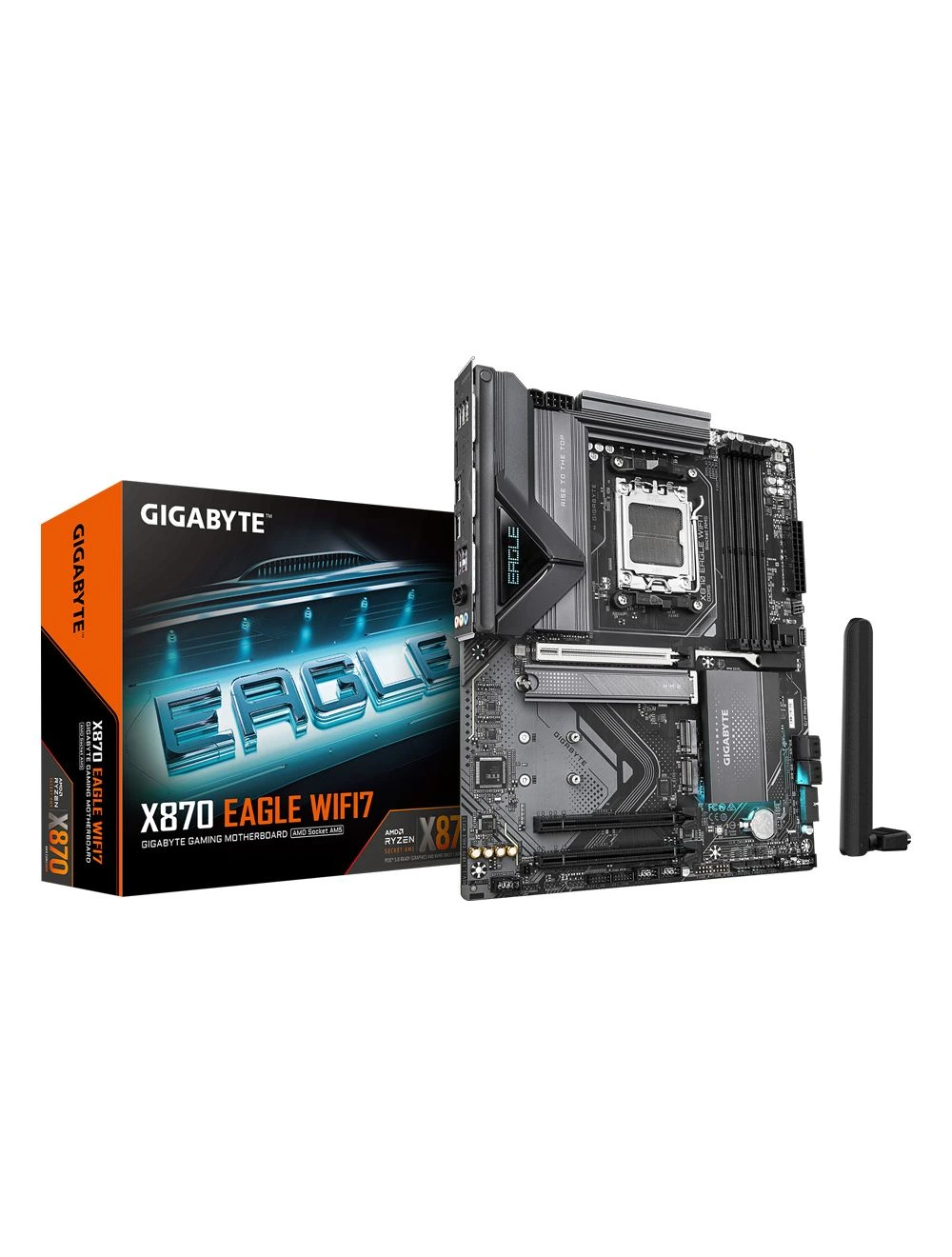
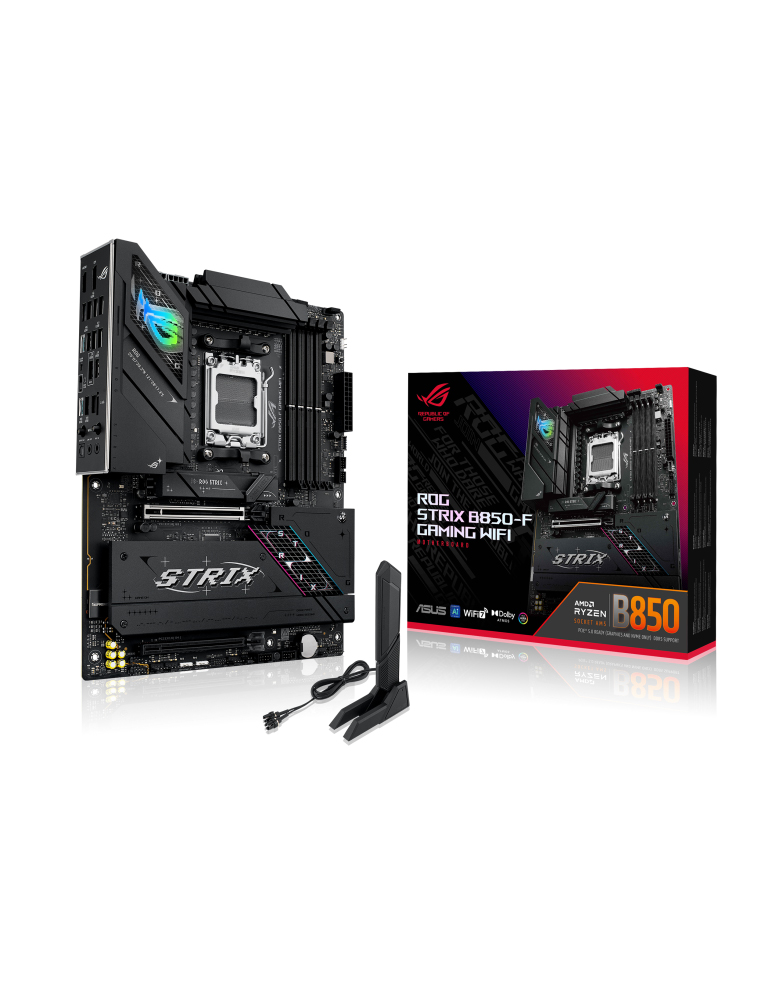
However, RAM generations are not interchangeable. Your motherboard and CPU determine which RAM type you can use.
For example:
- DDR4 motherboard = DDR4 RAM only
- DDR5 motherboard = DDR5 RAM only
Always check your motherboard specifications before purchasing RAM.
3. Speed / Frequency
You’ll often see RAM advertised with speeds such as:
- 3200
- 3600
- 5600
- 6000
- 6400
These numbers indicate how quickly the RAM can transfer data.
Higher speeds can improve:
- System responsiveness
- Gaming performance
- Memory-intensive workloads
- Certain productivity applications.
While many manufacturers still use MHz in marketing materials, DDR memory is technically measured in MT/s (MegaTransfers per second), since data is transferred twice per clock cycle.
For example:
- DDR4-3200 = 3200 MT/s
- DDR5-6000 = 6000 MT/s
Generally speaking, higher speeds offer better performance, especially when paired with compatible CPUs and motherboards.
4. Memory Timings
RAM specifications often include a set of numbers that look something like this:
CL18-22-22-42
These are known as memory timings.
The first number, called CAS Latency (CL), is the most commonly referenced timing. It measures how many clock cycles the RAM needs before it can respond to a request.
The complete timing set usually consists of:
- CL (CAS Latency)
- tRCD
- tRP
- tRAS
You don’t need to memorize these terms as a beginner.
The important thing to remember is: Lower timings generally mean lower latency, but RAM speed and timings should always be considered together.
For example:
- DDR5-6000 CL30 is usually faster than DDR5-6000 CL36
- But DDR5-6000 CL36 may still outperform DDR5-5200 CL30
When comparing RAM kits with similar speeds, lower timings are usually preferred.
5. Voltage
Voltage refers to the amount of power the RAM requires to operate properly.
Most modern RAM kits run at safe and efficient voltages, and modern motherboards can automatically configure these settings.
You may encounter technologies such as:
- Intel XMP
- AMD EXPO
These profiles automatically apply the advertised speed and settings of your RAM.
Without enabling XMP or EXPO, your RAM may run at slower default speeds.
6. Form Factor
Form factor refers to the physical size of the RAM.
There are two main types:
- DIMM
Used in desktop computers.
- SO-DIMM
Used in laptops and mini PCs.
These two formats are physically different and are not compatible with each other.
Desktop RAM cannot be installed in a laptop, and laptop RAM cannot be installed in a desktop motherboard.
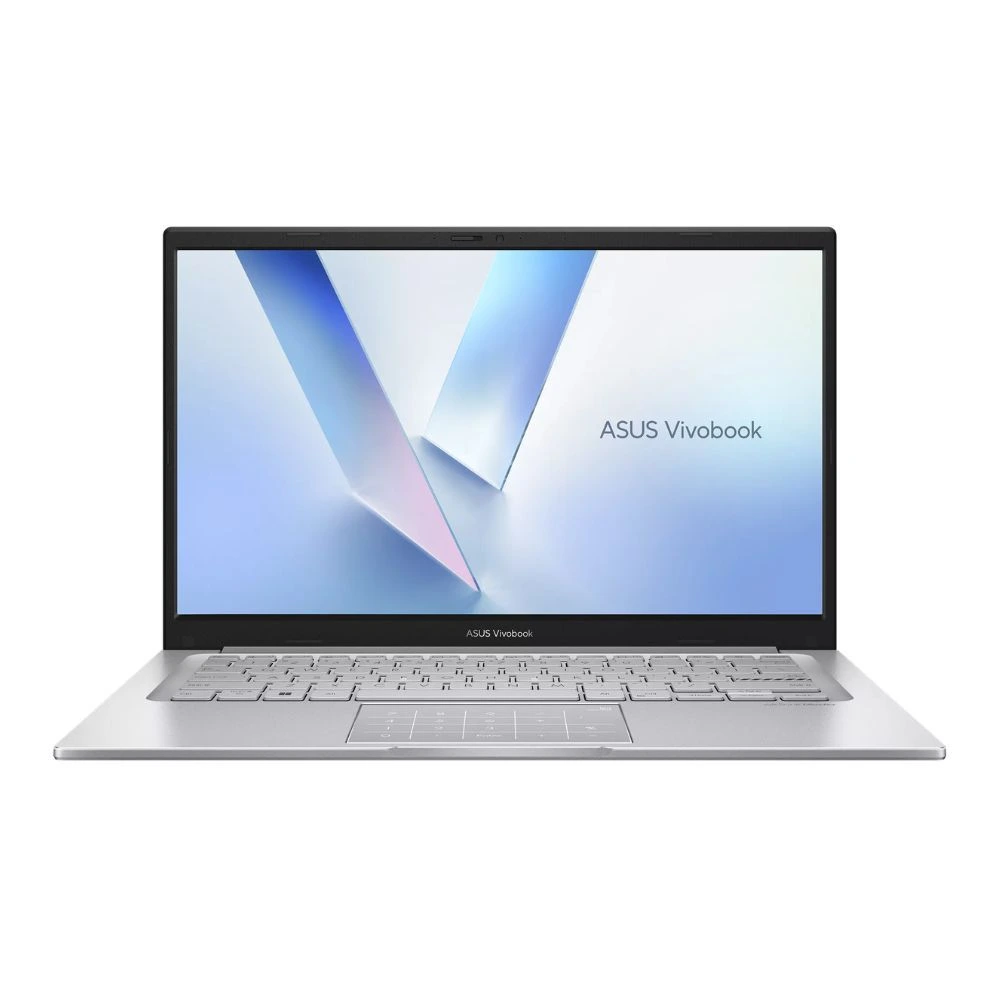
In addition, some newer laptops use LPDDR memory soldered directly to the motherboard, meaning they have no removable RAM slots. However, because the memory is soldered, you must ensure you purchase a device with enough RAM for your future needs (e.g., 16GB or 32GB) as you will not be able to upgrade it later.
7. Kit Configuration
Kit configuration tells you how many RAM sticks are included in the package.
Examples:
- 16GB (1×16GB)
- 16GB (2×8GB)
- 32GB (2×16GB)
Two identical RAM sticks installed in the correct slots usually provide better performance than a single stick because they enable dual-channel operation.
For example:
- 1×16GB = Single Channel
- 2×8GB = Dual Channel
Even though both configurations provide 16GB total capacity, the dual-channel setup usually performs better.
Understanding RAM Model Numbers
Sometimes, manufacturers provide RAM specifications through a long model number instead of listing everything separately.
For example:
F5-6000J3636F16GX2-TZ5RW
At first glance, it looks confusing but it actually contains useful information.
Let’s break it down:
F5 – Indicates the RAM generation.
F5 = DDR5
6000 – The RAM speed.
6000 MT/s
J3636 – Indicates the memory timings.
CL36
F16G – Per-stick capacity.
16GB per module
X2 – Number of RAM sticks included.
2 sticks
TZ5 – Series identifier.
Trident Z5 series
RW – Variant and color. (In this case, RW indicates the white RGB variant of the kit.)
R – RGB
W – White color
This breakdown applies specifically to this G.Skill model.
Keep in mind that every brand has its own naming system, so the format may vary between manufacturers such as Kingston, Corsair, TeamGroup, Patriot, or ADATA.
Final Thoughts
Understanding RAM specifications doesn’t have to be complicated.
Before buying RAM, make sure to check:
✅ DDR generation compatibility (DDR4 or DDR5)
✅ Maximum supported speed of your motherboard
✅ Maximum RAM capacity supported
✅ Whether you’re buying DIMM (desktop) or SO-DIMM (laptop)
Once you understand these basics, you’ll be much more confident when comparing RAM kits and choosing the right one for your PC build.
Knowing how to read RAM specifications can help you make a smarter buying decision and avoid compatibility issues, whether you’re building a gaming PC, workstation, or everyday desktop.