














A slow or outdated PC does not always mean you need to replace the entire system. Sometimes, a simple cleanup or a single component upgrade is enough to improve its performance.
The key is to identify what is limiting your computer before spending money on new hardware. Is your storage almost full? Are you running out of memory? Is your graphics card struggling with newer games?
If you are not sure when to upgrade your PC, here are six common signs to watch for and the checks you should perform before buying a new component.
1. Your PC is Slow even during Basic Tasks
One of the most noticeable signs that your PC may need an upgrade is slow performance during everyday use.
You may notice that your computer:
- Takes a long time to start
- Opens applications slowly
- Freezes or hangs while browsing the internet
- Responds slowly when switching between programs
- Takes longer than usual to open files
However, slow performance does not automatically mean that your hardware needs to be replaced. Too many startup programs, unnecessary background applications, limited free storage, malware, overheating, or an overloaded operating system can also slow down your computer.
Before upgrading, try closing unnecessary background applications, disabling unneeded startup programs, freeing up storage space, scanning for malware, and checking your PC temperatures.
If your operating system is still installed on a hard disk drive or HDD, moving it to a solid-state drive or SSD can make a major difference. An SSD can improve startup times, application loading, file transfers, and the overall responsiveness of your computer.
2. You Experience Low FPS and Stuttering in Games
If your games no longer run smoothly, your gaming PC may be struggling to meet their performance requirements.
Common signs include:
- Low or unstable frame rates
- Frequent stuttering or sudden frame drops
- Having to use the lowest graphics settings just to make a game playable
- Slow texture loading
- Performance that becomes worse during busy or visually demanding scenes
The graphics card is often the first component people consider upgrading for gaming. However, low FPS can also be caused by an underpowered processor, insufficient RAM, overheating, outdated drivers, or a game installed on a slow storage drive.
Before buying a new graphics card or processor, check the game’s recommended system requirements not only its minimum requirements. Minimum requirements usually mean that the game can run, but they do not guarantee smooth performance or high graphics settings.
You should also update your graphics drivers, monitor CPU and GPU temperatures, close unnecessary programs, and check your in-game settings. This helps you determine whether the problem is caused by the hardware or something that can be fixed through proper system maintenance and configuration.
3. Your PC struggles with your workload
Your PC may still feel fine during light tasks but become noticeably slower when you start working on demanding projects.
This can happen when:
- Videos take too long to render or export
- Photo or video-editing applications frequently lag
- Large project files take a long time to open or save
- Your PC slows down while several applications are running
- 3D rendering, design work, or other demanding tasks take longer than expected
Different workloads rely on different components. A faster processor can help with CPU-heavy tasks such as video encoding and certain types of rendering. More RAM can improve multitasking and help when working with large files. A stronger graphics card may improve GPU-accelerated editing, 3D work, rendering, and other supported applications.
Before upgrading, check the recommended hardware requirements of the applications you use. You can also open Task Manager while performing your normal workload and check whether the CPU, memory, disk, or GPU is consistently reaching very high usage. This can help you identify the component that may be holding back your system.
4. You regularly run out of RAM
RAM, or memory, temporarily stores the data that your active applications need. If your PC does not have enough RAM, it may slow down when you open several programs or browser tabs at the same time.
Signs of insufficient RAM include:
- Programs becoming slow or unresponsive during multitasking
- Browser tabs frequently reloading
- The system freezing when several applications are open
- Editing applications slowing down when working with large projects
- Delays when switching between programs
To check your memory usage in Windows, open Task Manager, select Performance, and then choose Memory. Monitor it while performing your usual tasks rather than when the computer is idle.
If your memory usage frequently stays around 90% or higher during your regular workload, you may benefit from adding more RAM. However, make sure the new memory is compatible with your motherboard and processor. Check the supported RAM generation, capacity, speed, number of available slots, and whether your system uses desktop or laptop memory.
High memory usage alone does not always prove that you need an upgrade. A malfunctioning or poorly optimized application can also consume too much RAM, so check which programs are using the most memory before buying anything.
5. You are always running out of Storage
Constantly deleting files or uninstalling games just to create space is a clear sign that your current storage capacity may no longer be enough.
Modern games, high-resolution videos, project files, and applications can take up a large amount of storage. When your drive is nearly full, you may also have less room for updates, temporary files, and other data needed by Windows and your applications.
Your storage upgrade will depend on your priorities:
- Add an SSD if you want fast loading times for games and applications.
- Add a high-capacity hard drive if you need affordable space for photos, videos, backups, and other large files.
- Replace your system HDD with an SSD if you want faster boot times, quicker application loading, and better overall responsiveness.
- Before buying a drive, check which connections and drive sizes your motherboard or laptop supports. Depending on the system, you may need a 2.5-inch SATA drive, an M.2 SATA SSD, or an M.2 NVMe SSD.
- Remember that adding storage gives you more space, while moving from an HDD to an SSD can also improve speed. These are related benefits, but they solve different problems.
6. New Games or Applications are no longer supported
If your PC cannot install or properly run newer games, applications, or operating-system updates, its hardware may no longer meet current requirements.
Newer software may require:
- A faster processor
- More RAM
- A stronger or newer graphics card
- More available storage
- A newer graphics API or hardware feature
- Specific security features supported by newer platforms
Always compare your PC specifications with both the minimum and recommended system requirements of the software you want to use. The minimum requirements may only allow the software to run at a basic level, while the recommended requirements are generally a better guide for a smoother experience.
If only one component falls short, upgrading that part may be enough. For example, you may only need additional RAM, more storage, or a better graphics card.
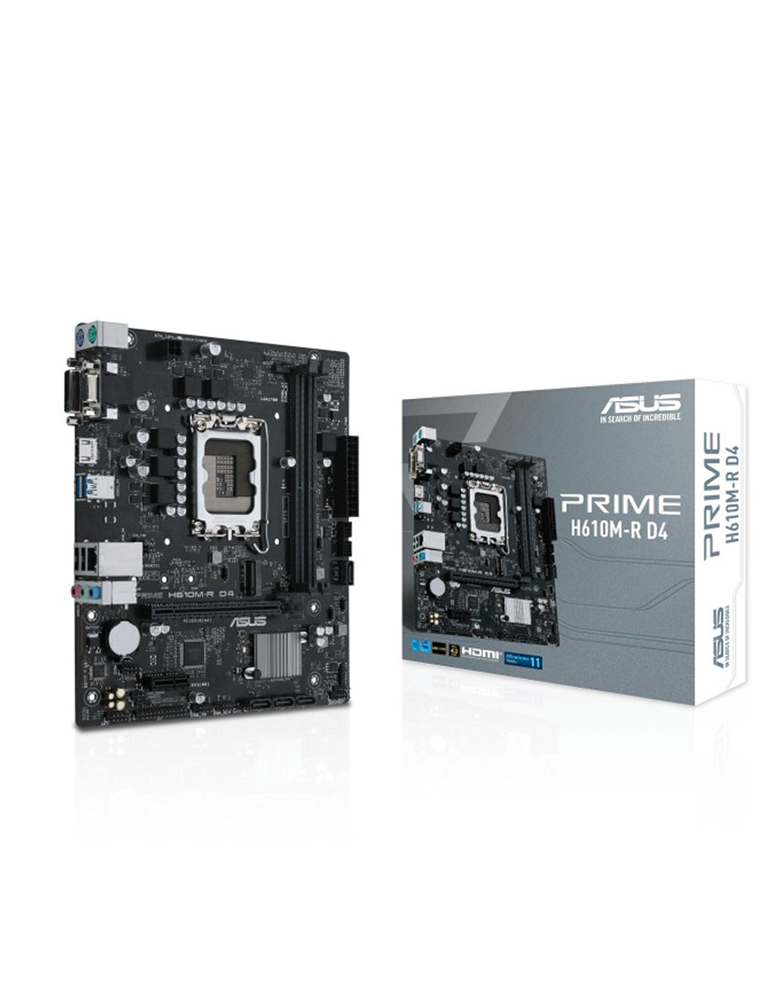
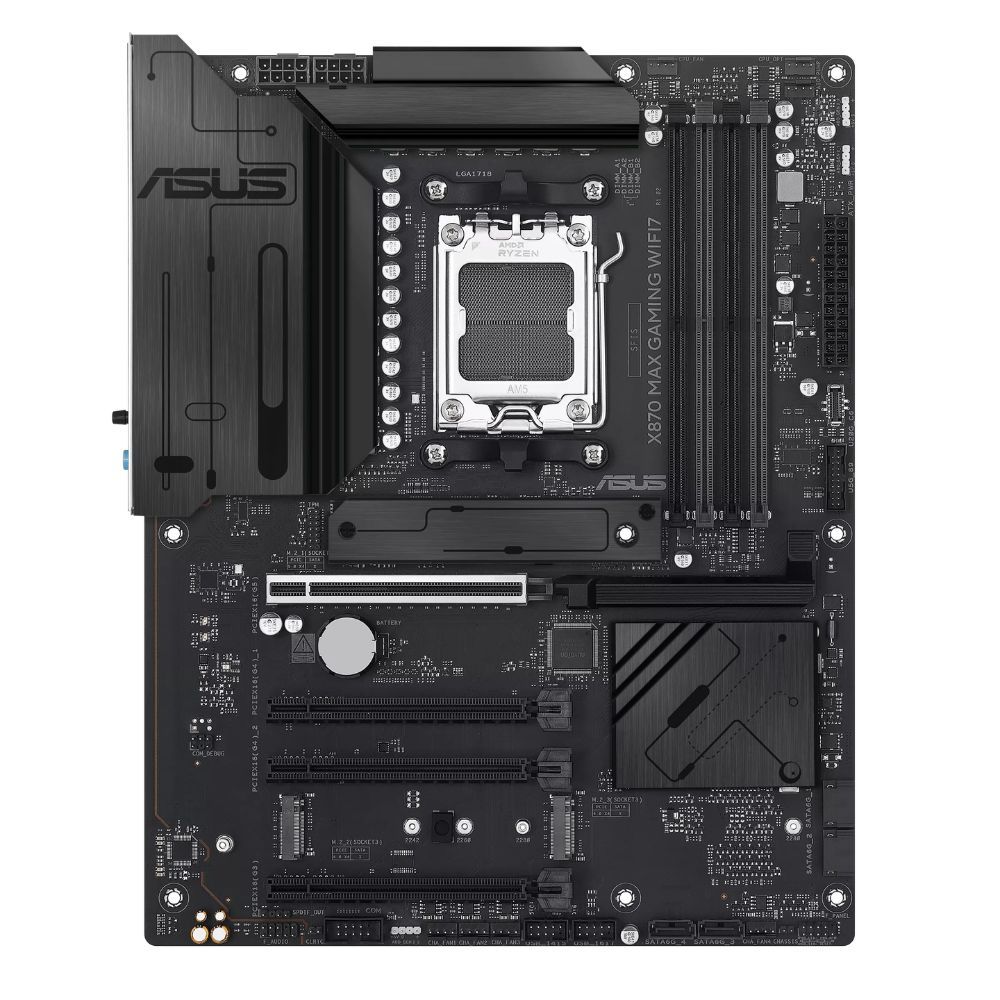
However, an older platform can make a simple upgrade more complicated. A newer processor may require a different motherboard, and that motherboard may require a newer type of RAM. If the processor, motherboard, and memory all need to be replaced, it may be more practical to plan a platform upgrade or compare its total cost with buying a new PC.
How to Identify Which PC Component Needs an Upgrade
Before purchasing any component, follow these basic steps:
- Identify the exact problem. Determine whether your PC is slow during gaming, multitasking, content creation, startup, or all of these activities.
- Check your current specifications. In Windows, you can use Task Manager, System Information, or the DirectX Diagnostic Tool to view key system details.
- Monitor component usage. Check CPU, memory, disk, and GPU usage while recreating the task that causes the slowdown.
- Check temperatures. Overheating can reduce performance even when the components are technically powerful enough.
- Compare software requirements. Use the recommended requirements for the games and applications you actually plan to use.
- Confirm compatibility. Make sure the new component works with your motherboard, power supply, case, cooling system, and other existing parts.
- Monitoring tools are helpful, but a high usage percentage is not automatically a problem. For example, high GPU usage while gaming can be normal. Look for consistent performance issues and consider the entire workload before deciding which part is the bottleneck.
Should You Upgrade One Component or Replace the Entire PC?
Upgrading one component usually makes sense when the rest of the system can still support it and the upgrade directly addresses your problem.
For example, adding RAM may help a system that struggles only with multitasking, while installing an SSD can improve a PC that still uses an HDD as its main drive.
A larger upgrade may be more practical when several major components are outdated, the power supply cannot support newer hardware, the case has limited space or cooling, or the platform offers no useful upgrade path.
Consider the total cost of all required parts before deciding. A new graphics card might also require a stronger power supply, while a new processor could require a new motherboard, memory, and cooler.
The best time to upgrade your PC is not simply when it becomes old. It is when the system can no longer deliver the performance, capacity, compatibility, or reliability you need for your regular tasks.
Start by identifying the problem, checking your PC’s usage and temperatures, and comparing its specifications with the requirements of your games and applications. Once you know which component is limiting the system, you can choose an upgrade that gives you a meaningful improvement without replacing parts unnecessarily.
Not sure which component is holding back your PC? Message iTECH Philippines or visit any iTECH store near you for help choosing compatible parts for your next PC upgrade.